

Table of Contents
- Pros and Cons of Digital Art Downloads
- Understanding Print Quality and Resolution
- DPI Requirements for Wall Art and Maximum Print Sizes
- Best Paper for Printing Digital Art
- How to Print Digital Art at Home
- Colour Profile Conversion and File Format Standards
- Cost-Effectiveness vs. Convenience
- Conclusion
- Frequently Asked Questions
Last Updated: September 4, 2026
Digital art downloads can produce gallery-worthy prints, but quality depends entirely on file resolution and your printing choices, not the download format itself. The fear of pixelated, washed-out results is avoidable with basic technical know-how.
Below, we’ll walk through the real-world pros and cons, the resolution standards that decide whether a print looks sharp or soft, and the exact printer settings that separate a keepsake from a disappointment. You will learn how to check a file before you buy, how to convert colours correctly, and which paper turns a good file into a great physical object.
Pros and Cons of Digital Art Downloads
Digital downloads offer instant access, full control over size and paper, and no shipping costs, a genuine advantage for renters or budget-conscious decorators.
The drawback: quality depends on your printer, paper, and colour settings. Screens emit light while paper reflects it, so vibrant on-screen colours often print duller, the main source of disappointment.
| Aspect | Digital Download | Physical Print |
|---|---|---|
| Delivery time | Instant | Days to weeks |
| Print control | Full, you choose size and paper | Limited to seller's options |
| Setup effort | Requires printer or print service | None, ready to hang |
| Cost per piece | Lower upfront | Higher, includes production |
| Risk of poor output | Yours to manage | Seller's responsibility |
Understanding Print Quality and Resolution
Print quality depends on resolution, measured in DPI (dots per inch). What matters is whether your file has enough pixels to cover your intended print size sharply.
The standard for wall art is 300 DPI, at this density, the eye cannot distinguish pixels and edges look crisp (peer-reviewed research). Below 150 DPI, softness becomes visible; below that, pixelation appears.
Before buying, check the pixel dimensions in the product listing, not just the claimed print size. A trustworthy seller states these clearly.
DPI Requirements for Wall Art and Maximum Print Sizes
To find maximum print size, divide pixel dimensions by 300. A 4500 by 5400 pixel file prints sharply at 38 by 46 centimetres.
The table below shows typical file sizes and their safe maximum print dimensions at 300 DPI. This is the reference point for most digital art download sites, including our own collection at Thistle and Ink Art.
| File Resolution (Pixels) | Max Print Size at 300 DPI | Best Use |
|---|---|---|
| 1500 x 2100 | 13 x 18 centimetres | Small frames, desks |
| 2100 x 3000 | 18 x 25 centimetres | Standard photo frames |
| 3000 x 4500 | 25 x 38 centimetres | Medium wall art |
| 4500 x 5400 | 38 x 46 centimetres | Large statement pieces |
For larger prints than the file supports, buy a higher-resolution file, use a professional print service, or accept lower DPI. Upscaling in software stretches pixels without adding detail and often looks worse than printing smaller.
Best Paper for Printing Digital Art
For home decor, heavyweight matte paper is the safest choice, it reduces glare and handles colour better than glossy without smudging issues.
Use 200 gsm or higher paper for framed prints (iso.org). Standard office paper (80 gsm) is too thin, it curls and bleeds ink.
Glossy suits vibrant, high-contrast art but shows fingerprints. Matte is more forgiving for fine detail and softer palettes. Giclée papers offer archival quality for premium results.
How to Print Digital Art at Home
Success depends on three decisions: printer settings, paper handling, and colour management.
Printer Settings for Maximum Quality
Check your printer's maximum paper weight in the manual. Paper above 250 gsm may jam or feed unevenly on consumer inkjets.
Next, access your printer driver settings. On Windows, this is usually found under Settings > Devices > Printers & Scanners > [Your Printer] > Printing Preferences. On macOS, it is in System Preferences > Printers & Scanners > [Your Printer] > Options & Supplies. Look for these critical settings:
Print Quality: Select "Best", "Fine", or "Photo" mode. High quality is slower but produces finer detail and smoother gradations. Avoid Draft or Fast modes.
Paper Type: Match the setting to your paper. Mismatched settings cause dull colours or smudging.
DPI: 300 DPI is standard and sufficient. Higher settings use more ink and time for minimal gain.
Colour Management: Choose one: printer-managed or software-managed. Never enable both. If using Photoshop or similar, disable printer colour management. If printing from a browser, leave it on.
Paper Handling and Test Prints
Run a test print on plain paper first to catch colour, banding, or alignment issues. Examine it in natural daylight.
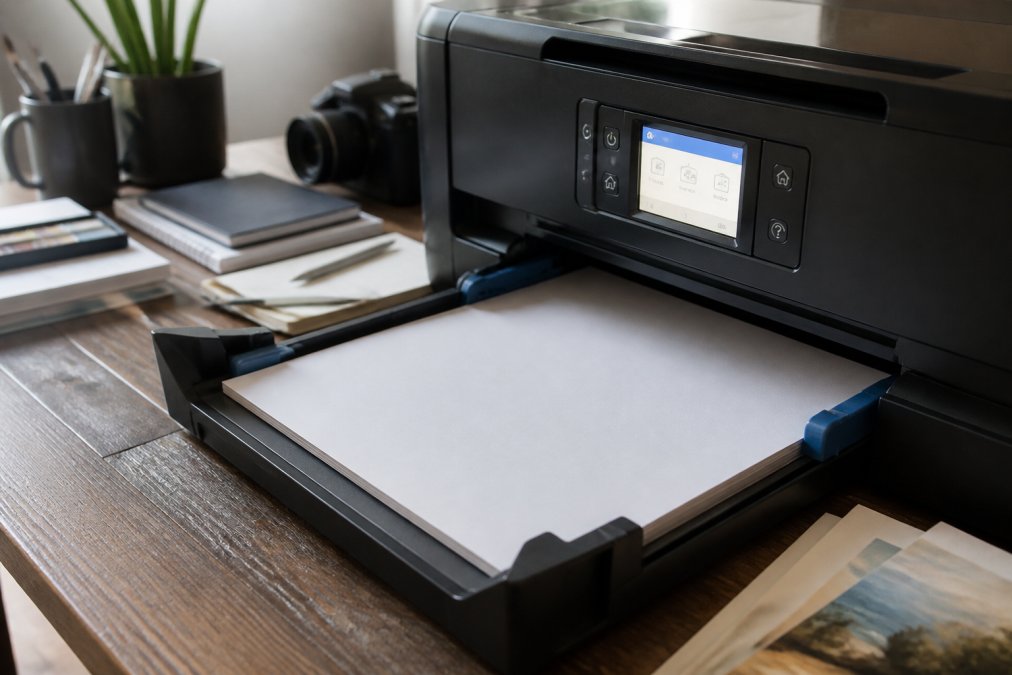
Load premium paper carefully with guides adjusted snugly to prevent skewing. Use the specialty tray or manual feed slot.
Let paper acclimate to room humidity for 30 minutes before printing to avoid ink adhesion problems or warping.
Troubleshooting Common Problems
Dull colours: Check paper type selection and print quality setting. Run the printer's cleaning cycle if the problem persists.
Colour shift: Disable colour management in either software or printer driver, not both. If printing from a browser, download and open in an image viewer with colour profile support.
Banding: Check file resolution (300 DPI minimum). Run cleaning cycle and replace low ink cartridges.
Jams: Check maximum paper weight in manual. Adjust guides to grip snugly without bending.
When to Use a Professional Print Service
For large prints, important pieces, or poor home printer results, professional services are worth the cost. They offer industrial printers, wider paper ranges, and gallery-quality finishes.
Colour Profile Conversion and File Format Standards
Colour accuracy fails because screens use RGB light (millions of hues) while printers use CMYK ink (smaller gamut) (peer-reviewed research). Bright on-screen colours cannot always be reproduced on paper.
This is a physical limitation, not a file flaw. Vivid turquoise may print as dull blue-green; reds shift toward orange; purples flatten to grey.
How to Prevent Colour Shift
Check the seller's colour space specification (sRGB or Adobe RGB). For home printing, sRGB is standard as it matches consumer printer gamut better.
Calibrate your monitor if possible, even visually. If not, edit in neutral lighting and trust the file's colour profile.
For professional print services, ask which colour profile they use and request a soft proof before ordering large prints.
For home printing, keep files in RGB and let the printer convert. Disable automatic colour management in printer settings if using software profiles to avoid double conversion.
File Format Matters as Much as Colour Space
Standard print-ready formats are TIFF or PNG without lossy compression. Both preserve all colour data.
JPEG uses lossy compression, creating visible banding, blocking, and colour shifts. High-quality JPEG (90%+) works for small prints; larger prints show artefacts.
Vector files scale infinitely but suit only logos and graphic design, not painterly art or photos. A vector-only photorealistic portrait is a red flag.
What to Check Before You Buy
Check for: colour space (sRGB/Adobe RGB), file format (TIFF/PNG/high-quality JPEG), pixel dimensions, and embedded colour profile. Sellers providing these details understand print quality; vague assurances suggest untested files.
Cost-Effectiveness vs. Convenience
Downloads are cost-effective: one purchase prints at multiple sizes for personal use. For gifts, you can match exact frame dimensions.
Instant delivery suits last-minute gifts, feasible within days with a printer or local print shop, unlike custom commissions or framed prints.
You absorb printing costs and risk. Low-quality home printers produce disappointing results regardless of file quality. Professional services are worth the cost for large or important pieces.
Success depends on understanding DPI, choosing right paper, and controlling colour settings. Skip these steps and you will be disappointed.
Conclusion
Digital downloads require more effort than ready-made pieces but offer control over size, paper, and cost. Pixelation fears are unfounded if you check resolution before buying.
Thistle and Ink Art designs print-ready downloads with clear resolution guidance. Browse our collection of personalised portraits, Scottish scenes, and modern pieces to create wall art that suits your space and budget.
Frequently Asked Questions
How do I know if a digital art download file is high enough resolution for a large print?
Check the file's DPI (dots per inch) and pixel dimensions. For wall art, aim for at least 300 DPI at your intended print size. A file that's 3000 × 2000 pixels works well for A2 prints (420 × 594 mm); larger walls need proportionally larger files. If you're unsure, calculate: divide the pixel width by your desired print width in inches, then multiply by 2.54 to convert to centimetres. If the result is 300 or higher, the file will print crisply. Files below 150 DPI risk visible pixelation, especially on matte finishes where imperfections show more clearly.
What's the difference between RGB and CMYK colour profiles for digital art prints?
Digital screens display colour in RGB (red, green, blue), but printers use CMYK (cyan, magenta, yellow, black). When you print an RGB file directly, colours can shift, reds may look duller, blues less vibrant. Before printing, convert your file to CMYK using photo editing software or ask your print service to handle the conversion. Some colours, particularly bright neons, cannot be replicated in CMYK, so test a sample print first. Professional print-on-demand services often handle this automatically, but home printing requires manual conversion for best results.
Are digital art downloads actually worth it compared to commissioning custom artwork?
Digital downloads offer significant advantages for renters, budget-conscious decorators, and those needing quick turnaround. You get instant access, no shipping delays, and the ability to print multiple copies or scale to your wall. However, custom commissions offer exclusivity and personalisation that pre-made designs cannot match. Downloads work best if you find designs that genuinely fit your space and aesthetic; custom art suits those willing to wait weeks and invest more. The real value of downloads lies in affordability and convenience, if you're happy with the design and willing to invest time in proper printing, they deliver professional-looking results at a fraction of commission costs.
What happens to my digital art file if the seller stops operating?
Once you've downloaded a digital file to your device, you own that file permanently, the seller's business closure doesn't affect your access. However, you cannot re-download it if your file is lost unless you've backed it up separately. To protect yourself, save your purchased files to cloud storage (Google Drive, OneDrive, external hard drive) immediately after purchase. Check the seller's terms of use regarding personal use rights and whether you can print unlimited copies or only for personal, non-commercial purposes. Reputable sellers provide clear licensing information; if terms aren't transparent, ask before purchasing.
This article was written using GrandRanker